
What is the Hotel Lobby trend?
The Hotel Lobby trend reimagines the Quavo and Takeoff “HOTEL LOBBY” performance for A COLORS SHOW: two performers, an orange set and a single hanging microphone. In AI versions, creators put a new pair into that recognizable scene. The result can feature friends, fictional characters or pets.
If you searched “how to do hotel lobby trend,” the shortest answer is: choose two characters, prepare one clear image of each, use a Hotel Lobby video template, review the generated clip and post it with an AI disclosure when required. The steps below show exactly how that works in our studio.
Which way should you make it?
There are a few ways to get the orange-room look. Pick the one that matches the video you want to share.
| Method | What you need | What you get |
|---|---|---|
| Two-photo AI template | One image for the left performer and one for the right. | A new clip following a fixed Hotel Lobby performance. Our studio uses the original template timeline and audio. |
| Video editing template | The photos or clips requested by that particular template. | A quick edit. Check its preview first: templates using the name “Hotel Lobby” may have different scenes or effects. |
| Film your own version | Two performers, a backdrop, lighting, a microphone or prop, and footage to edit. | Your own performance, with full control over the scene and audio. |
Our generator is for the fixed two-character performance. It does not write new lyrics, record your voice or let you choose a different song. If those are your goals, plan an original shoot or choose a tool built for a new performance.
How to do the Hotel Lobby trend with two photos
Choose your duo
Pick two people or characters you have permission to depict. Our studio does not accept images depicting anyone under 18. A pet or illustrated character works too.
Prepare one image per performer
Use clear, well-lit, front-facing images with the full body visible. Keep each image to a single subject. A head-only selfie gives the model less information about clothing and pose.
Set the left and right roles
Open the Hotel Lobby studio. Upload your first image under “Left character” and your second under “Right character.” Check both previews so the cast is in the order you intended.
Choose a clip length and generate
Select 5, 10 or 15 seconds. Hotel Lobby Generator displays the credit cost before you submit. Sign in with Google, start generation and return to your account to watch the result. Rendering usually takes several minutes.
Review, download and post
Check that both characters look right, the motion is usable and the audio is present. Download the MP4 from your account. When you post realistic AI footage, use the platform’s AI content label and make clear that the scene is generated.
For accepted file formats, image limits, credits and failure handling, follow our detailed Hotel Lobby video guide.
What does a finished example look like?
Our Cat × Dog example uses a separate full-body input for each performer. The generated clip keeps the orange room, microphone, camera movement and original audio, while replacing the two on-screen characters. You can view both input images alongside the actual output, which is more useful than judging a polished poster alone.
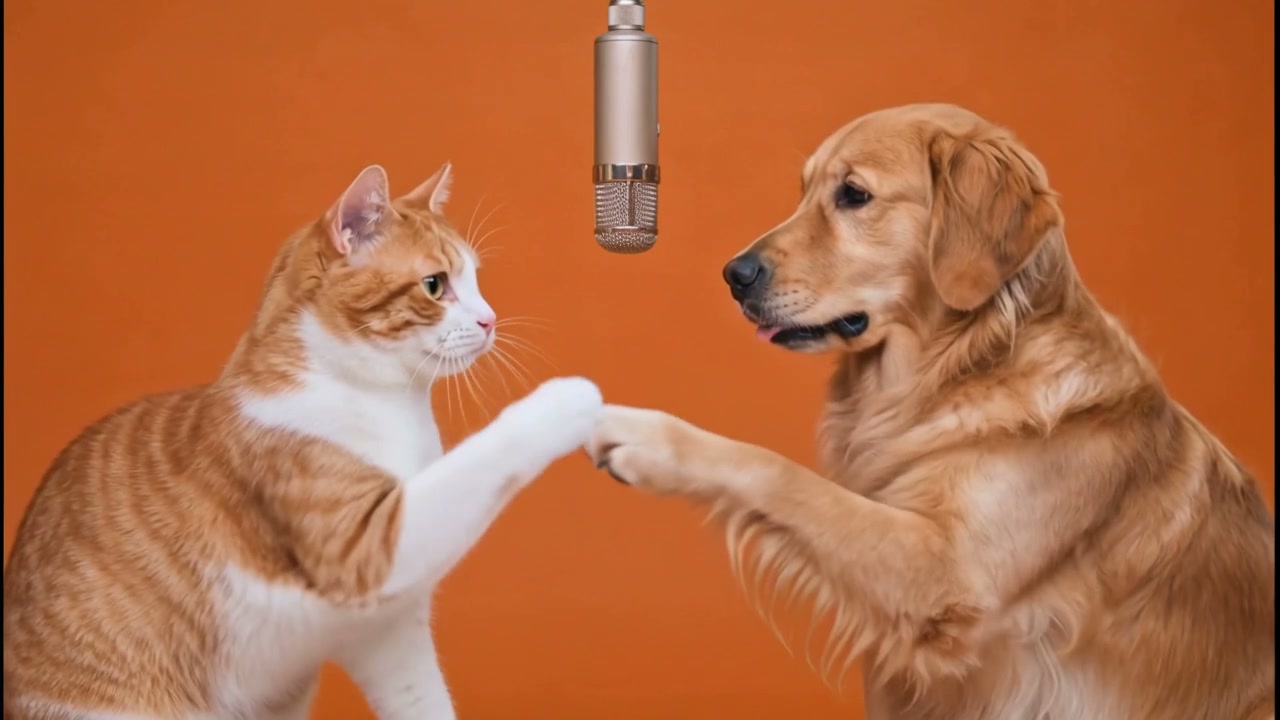
AI results vary between submissions. A face, outfit, hand or gesture can drift from its reference image, so inspect the finished video before sharing it.
What should you check before posting?
- Consent: use photos and likenesses you have permission to use. Do not present the generated performance as something a real person actually did.
- Disclosure: TikTok requires labels for realistic AI-generated content. Check the rules of whichever platform you use before uploading.
- Audio rights: the clip includes the template’s original audio, but receiving an MP4 does not grant rights to the song or performance. Posting or commercial use may require separate permission.
- Presentation: preview the entire video on a phone, check its crop and sound, and write a caption that identifies it as an AI remake.
Hotel Lobby Generator is independent and is not affiliated with COLORS or the original performers. See our Terms of Service for use requirements.
Quick answers
Can I do the Hotel Lobby trend for free?
New accounts may receive free credits while spots are available. Our free Hotel Lobby generator guide shows exactly which video lengths those credits cover. Check the studio’s displayed cost before generating.
Do I need to film or write a prompt?
No. For our fixed Hotel Lobby template, you upload two images and choose a length. The scene, camera motion and audio are already set.
Can I use two selfies?
You can upload portraits, but full-body images usually give the model more information about clothes and proportions. Choose clear single-subject photos and compare the result with your inputs.
Ready to put your own duo in the orange room? Hotel Lobby Generator, or browse real generated examples first.
Make your Hotel Lobby video